
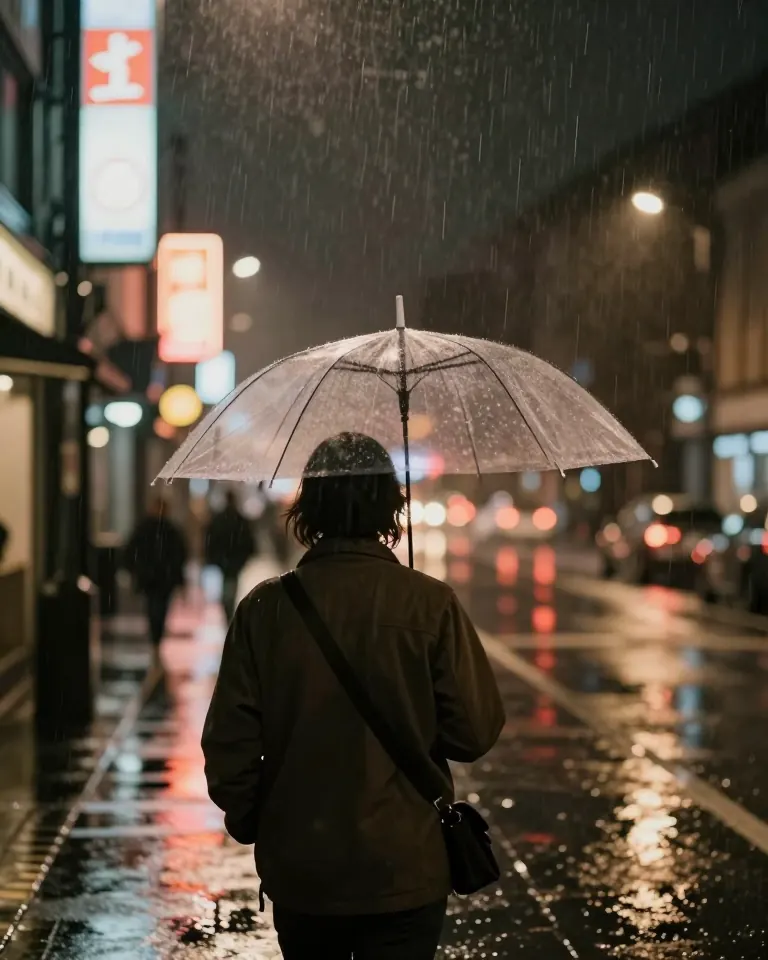
Rain street
A person walks away under a clear umbrella on a rain-soaked city street at night, slow tracking shot, neon reflections, no readable signs.
HiDream Video online
Upload a start frame or write a prompt, set where the shot begins and ends, then download the video.

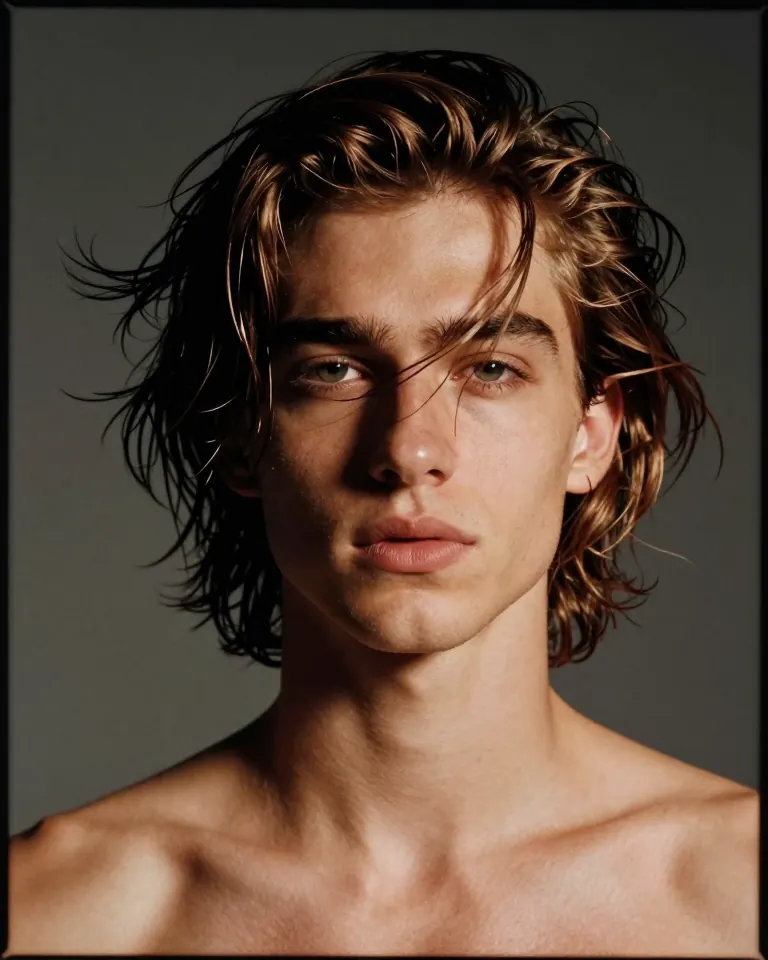
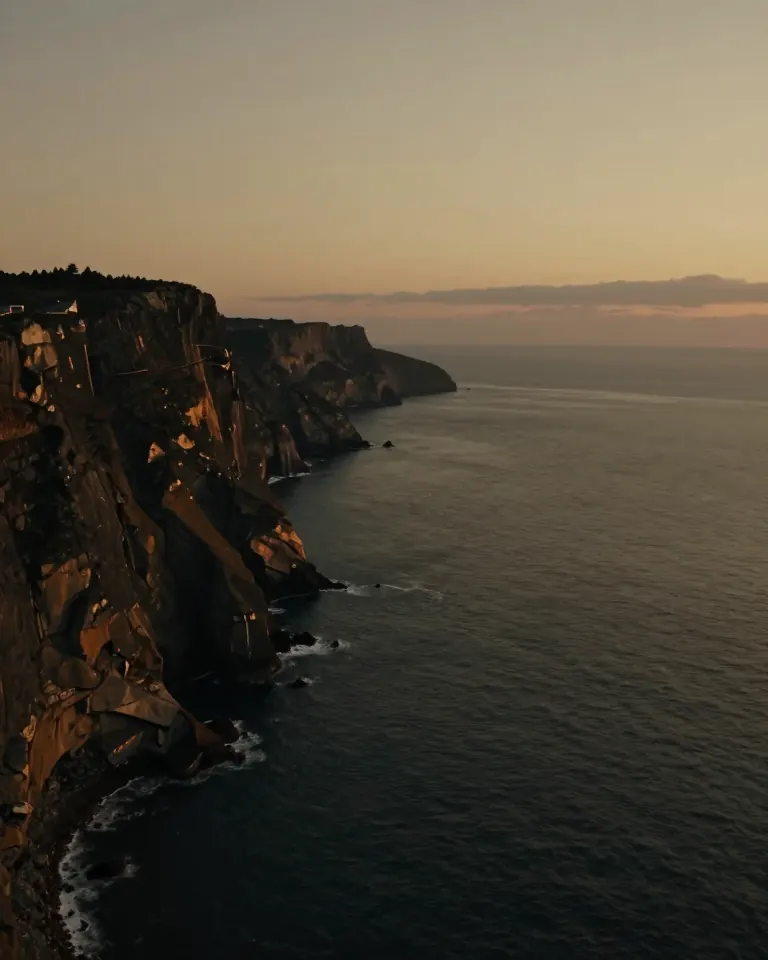
See HiDream Video shots and the prompts behind them. Copy a prompt, or open it in the editor to generate a similar camera move.
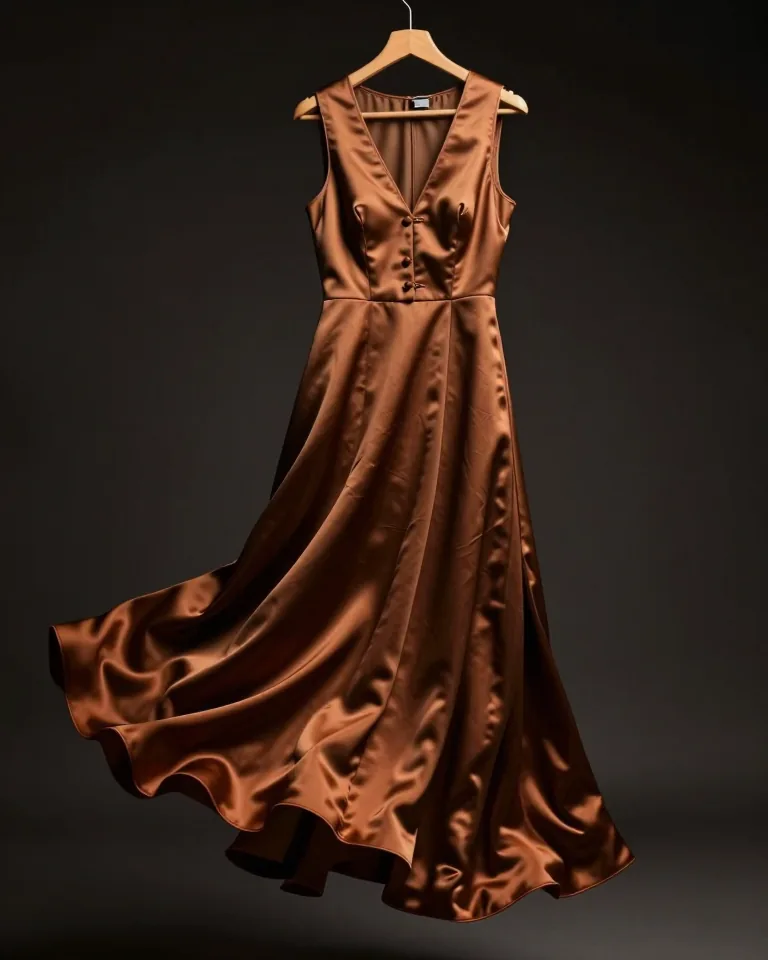
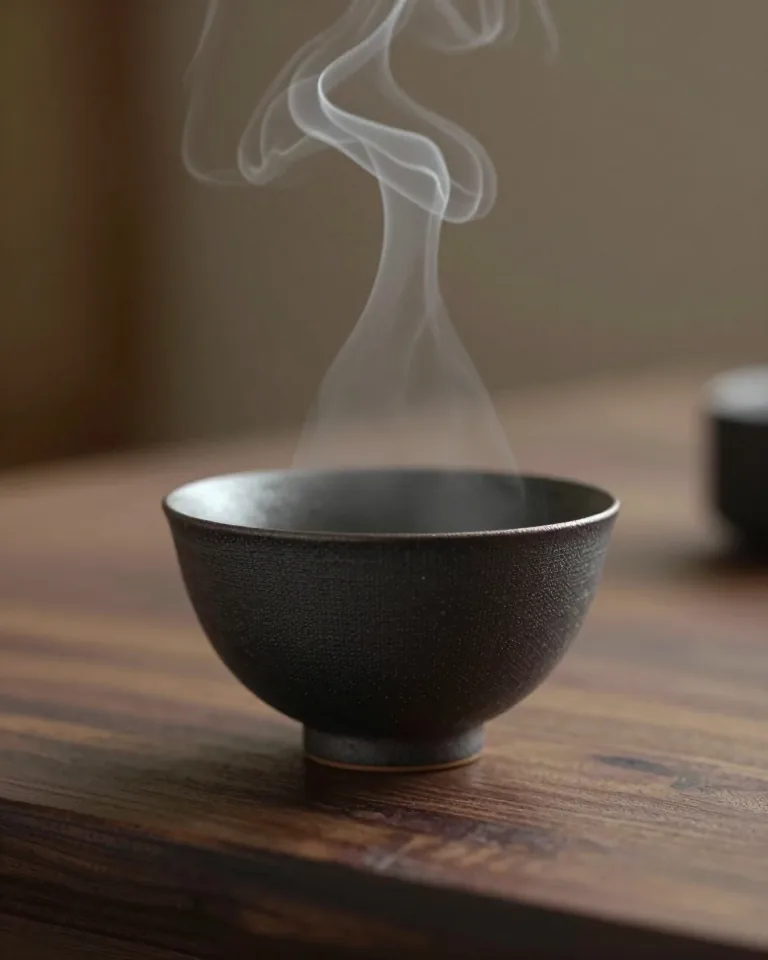
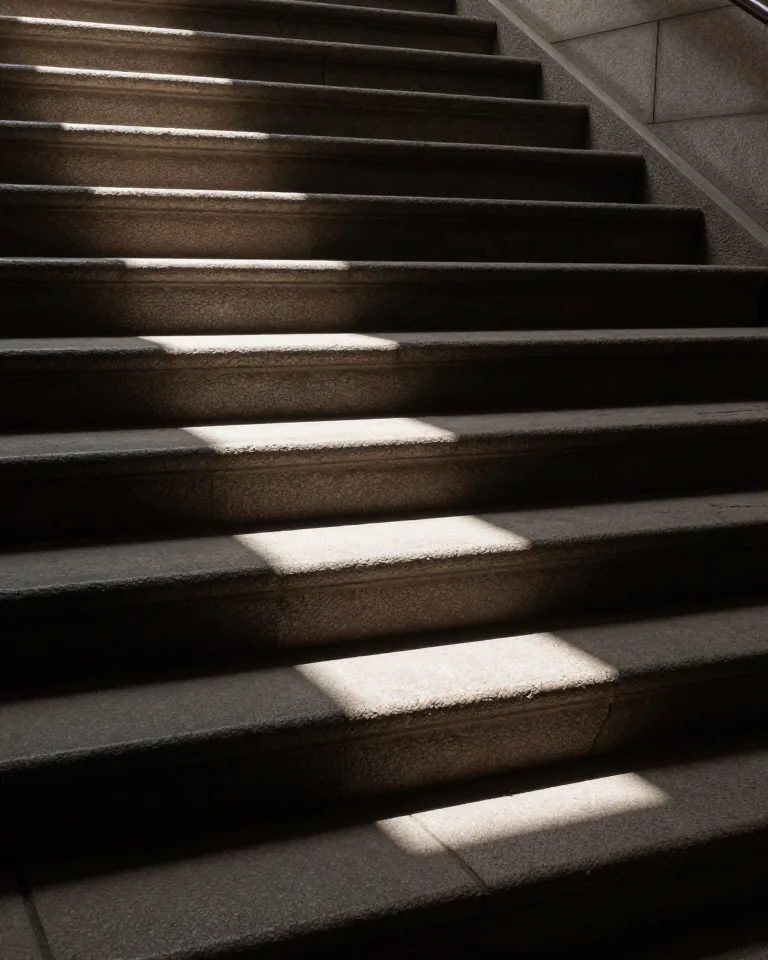
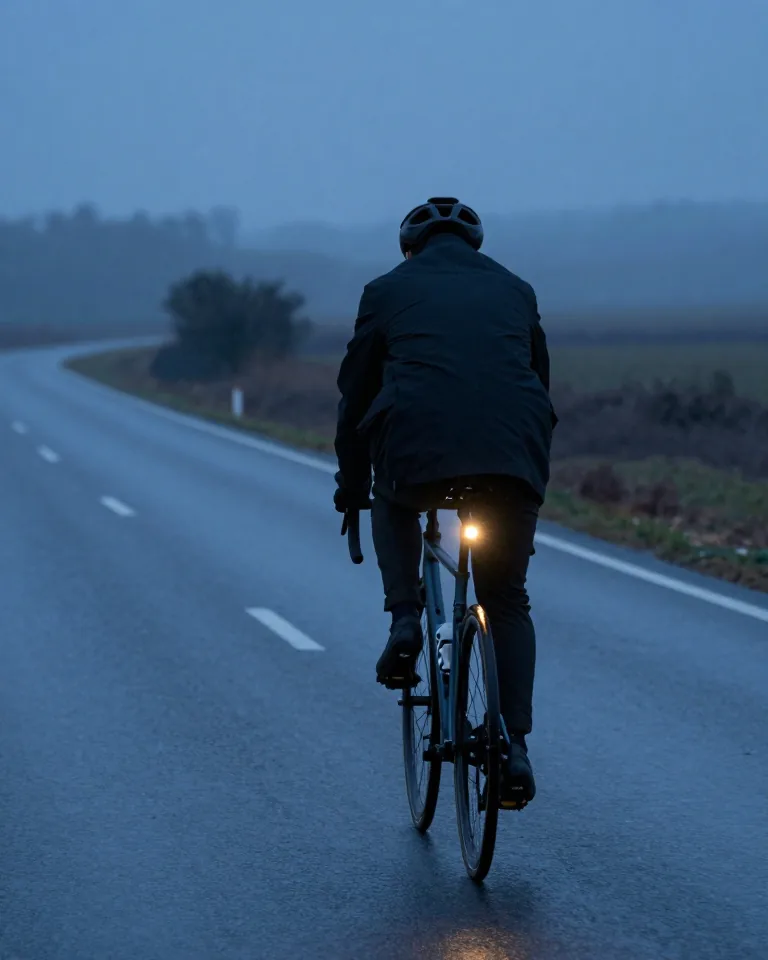
Upload a start frame and an end frame. HiDream Video builds the motion between those two pictures, for a locked camera, a person moving, or a scene change.
Upload a reference clip and let HiDream O1 Video follow its camera move, pacing, and path on a new shot.
Describe a push-in, pull-out, orbit, or pan. HiDream Video uses that camera direction in the generated clip.
Set the opening and closing pictures, or upload a reference video so HiDream O1 Video follows an existing camera move.
Upload the first frame as the opening. Add an end frame when the video should finish on a specific picture. HiDream Video fills the motion between them.
Already like a camera move? Upload that clip and describe the new scene. HiDream O1 Video follows the reference motion, pacing, and path.
After the prompt and references are set, start the run. Preview the video, then download it or adjust the prompt and run again.
Upload a picture, a prompt, or a reference video. Control where the shot starts, where it ends, and how the camera moves.
Use one image as the opening frame. Add an end frame when the video should land on a specific picture.
Describe the action, the scene change, and the camera move. Or upload a reference clip so HiDream O1 Video follows that motion.
Choose HiDream Video or HiDream O1 Video, start the run, then preview and download the file.
Want tighter camera control? Read the HiDream O1 Video guide
Image to video, start and end frames, camera direction in the prompt, and reference-video motion on HiDream O1 Video.
Turn a still person, product, illustration, or scene into a moving video.
Name the opening picture and the closing picture. HiDream Video generates the motion in between.
Describe a push-in, pull-out, orbit, or pan in the prompt and use that camera move in the clip.
Use a clip you already have as the motion reference, and apply a similar camera language to a new subject with HiDream O1 Video.
Sample prompts for these shots. Open one in the editor if you want that camera move.
“A 9:16 shop loop: the bottle turns a quarter, light moves across the glass, and the clip ends on a still label-free frame.”
“A portrait test: wind lifts the hair, the head turns slightly toward camera, bronze rim light, no wardrobe logos.”
“A travel opener: the camera drifts along a dusk cliff for eight seconds, then holds on the horizon.”
When the new video should reuse a camera move you already like, HiDream O1 Video takes a reference clip plus your prompt.
HiDream Video on this page covers image to video, a start frame, and an end frame.
Start from a still and describe the motion you want in the clip.
Set the opening picture and the closing picture. HiDream Video generates the motion between them.
On HiDream O1 Video, a reference clip carries the camera move into a new scene.
Start frames, end frames, reference video, camera motion, and the file you download.
Open a sample prompt, or write the shot, then generate and download the video.